
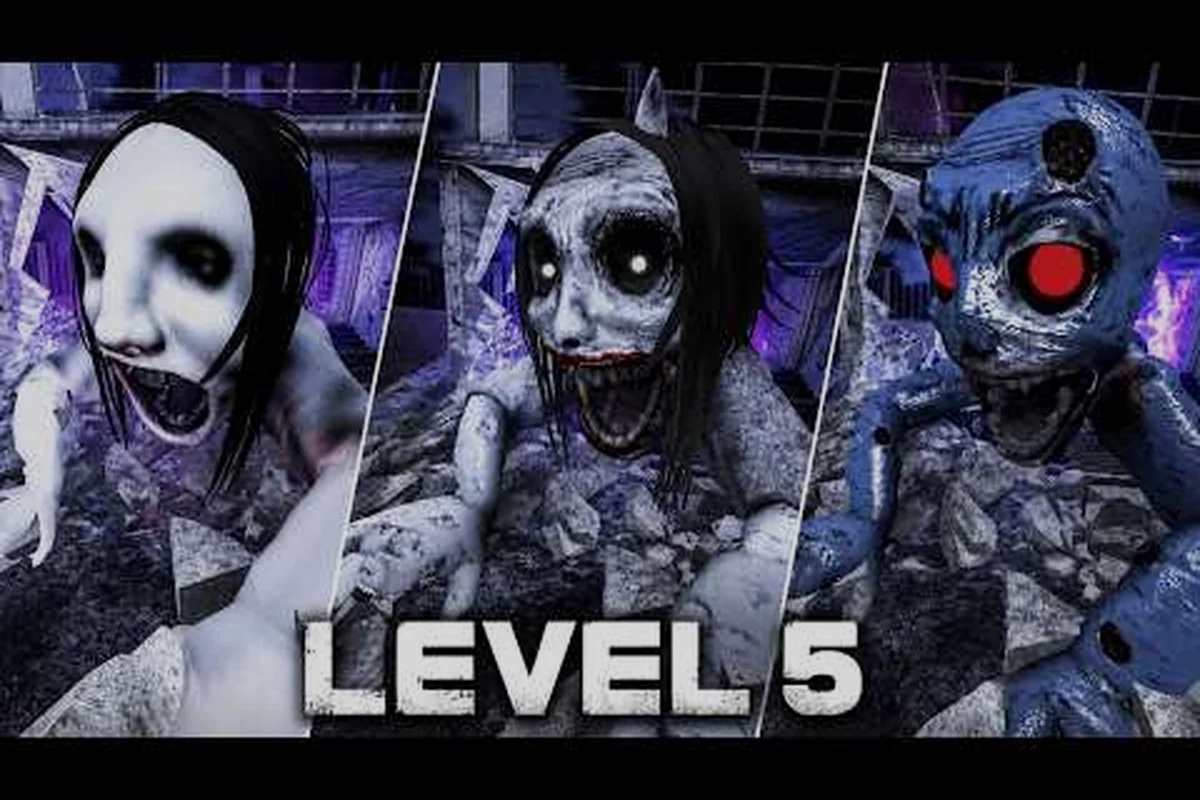
Getting comfortable with PETAPETA controls is the difference between a clean escape and a panicked stumble into a wall. This PETAPETA controls guide breaks down movement, camera handling, and character actions so your first hours feel deliberate instead of chaotic.
The game leans hard on tight, responsive input, and every chase sequence punishes sloppy camera work. If you have ever lost a run because the view snapped the wrong way at the worst moment, the fix starts here. Read on to learn how each input layer works and how to tune it to your hands.
How PETAPETA Movement Works on Keyboard and Gamepad
PETAPETA movement is built around short, committed bursts rather than long glides, which means your input timing matters more than raw speed. The character accelerates quickly and stops almost instantly, so tapping a direction gives you fine control while holding it commits you to a full stride. Understanding that difference is the core of any solid PETAPETA movement guide.
On keyboard, movement maps to the standard WASD cluster, with Shift reserved for the faster sprint state and Space handling jumps and vaults. Gamepad players get the left stick for direction and the left trigger for sprint, which many players find smoother during chases because analog input lets you curve around corners instead of snapping to eight directions.
A few movement behaviors are worth memorizing early: the sprint stamina drain means a held Shift or left trigger only buys you a short burst before the bar empties, so plan each sprint around a known gap rather than holding it through a whole corridor. Vault prompts reward approaching a low obstacle head-on at close range — press Space (or A/Cross) the moment the prompt appears to clear it without losing momentum, which keeps your stride intact through the early rooms. Corner cutting favors the left stick, because diagonal WASD input can clip geometry on tight turns where analog curves cleanly. Finally, landing recovery locks you briefly after a high fall, so never drop from a ledge mid-chase unless the route demands it.
-
Sprint stamina drains while held and refills after roughly two seconds of walking, so chaining sprints requires a short breather.
-
Vault prompts appear when you face a low obstacle at close range; pressing jump at the prompt clears it without losing momentum.
-
Corner cutting works best with analog input, since diagonal keyboard movement can clip geometry on tight turns.
-
Landing recovery locks you in place briefly after a high fall, so avoid dropping from ledges mid-chase.
The table below summarizes the default bindings most players start with, based on community reports and the in-game control menu. Treat it as a baseline rather than gospel: on keyboard, the Ctrl crouch binding sits awkwardly beside Shift sprint, so many players rebind crouch to an extra mouse button to keep their left hand on WASD during stealth sections. Gamepad defaults are more forgiving, but the right stick click camera reset can trigger accidentally during panicked chases — some players swap it to a bumper. Note that E and X/Square handle every interaction type (doors, switches, pickups), so there is no separate context wheel to learn.
| Action | Keyboard | Gamepad | Notes |
|---|---|---|---|
| Move | WASD | Left stick | Analog gives smoother curves |
| Sprint | Shift (hold) | Left trigger | Drains stamina bar |
| Jump / Vault | Space | A / Cross | Context prompt near ledges |
| Interact | E | X / Square | Doors, switches, pickups |
| Crouch | Ctrl | B / Circle | Slows movement, hides you |
| Camera reset | Middle mouse | Right stick click | Snaps view behind character |
If you are still learning the early rooms where these inputs get tested, the first three levels walkthrough shows exactly where vault prompts and sprint gaps appear. Watch how the first vault prompt in Level 1 arrives right after a short sprint gap: you need to release Shift or the left trigger before the prompt fires, because arriving at full sprint speed pushes you past the obstacle hitbox and skips the vault window entirely. Treat those opening rooms as a timing drill for the stamina bar — each sprint gap is sized so a single burst clears it with the bar nearly empty, which teaches you the drain rate before later chases demand chained sprints.
Sprint Timing and Stamina Management
Sprint is not a free action. The stamina bar drains in roughly four seconds of continuous holding and regenerates only while you walk or stand still. That means the smartest PETAPETA movement pattern is burst-sprint, walk, burst-sprint again, rather than holding the key until the bar empties and leaves you crawling.
Players who master this rhythm can outrun most pursuit sequences without ever touching a hiding spot, because the pursuer's pathing assumes you will run out of stamina. Break that assumption and you gain a full corridor of distance. Practice the burst pattern in an empty room before you rely on it under pressure.
Analog vs Digital Input Differences
Keyboard movement is digital, meaning each key press is either fully on or fully off. Gamepad sticks are analog, so a half-tilted stick produces a slower walk. For precision platforming, analog wins; for rapid direction changes, some players prefer the crisp snap of keys.
There is no wrong answer here, but be consistent. Switching between input types mid-run resets your muscle memory for sprint distance and vault timing, and those two skills are exactly what the harder chase sequences test. A concrete example: if you clear the opening corridors on keyboard and then swap to a gamepad before the first long vault chain, your half-tilted stick will register as a slower walk instead of the full-speed sprint the gap was tuned for, and the jump arc lands short. Pick your device before the run starts, bind sprint and vault to buttons you can hit without moving your thumb off the camera stick, and keep that layout fixed across retries so each death teaches you the level rather than a new control scheme.
PETAPETA Camera Control and Why It Decides Chases
PETAPETA camera behavior is the single most underrated part of the control scheme. The default view sits close behind the character with a slight lag, which feels cinematic in open rooms but becomes a liability in corridors where enemies approach from the sides. Learning to pre-rotate the camera before you move is the skill that separates clean runs from messy ones.
Mouse look handles free rotation on PC, while gamepad players use the right stick. Both support a camera reset input that snaps the view directly behind your character, and that button is your emergency tool whenever the angle drifts during a sprint.
| Camera Setting | Default | Recommended | Effect |
|---|---|---|---|
| Sensitivity | Medium | Medium-high | Faster turns without overshoot |
| Invert Y | Off | Personal preference | Affects vertical look only |
| Camera lag | On | Off for chases | View tracks character instantly |
| Field of view | 70 | 80-85 | Wider awareness in corridors |
| Auto-center | On | On | Resets behind you after idle |
Community reports suggest that turning camera lag off is the most common first adjustment new players make, because the trailing view hides side approaches during pursuit sequences. Widening the field of view to around 80 degrees also helps in tight interior spaces without introducing noticeable distortion.
Pre-Rotating Before You Move
The trick experienced players use is rotating the camera first, then moving. Because the character moves relative to the camera direction, pointing the view down a corridor before you sprint means your first step already goes where you want. Doing it in the reverse order produces the classic "run into a doorframe" moment.
Try this in a safe room: rotate the camera ninety degrees, then press forward. You will immediately feel how much more controlled the movement becomes — the character's heading snaps to the new camera axis instead of drifting along the old one, so there is no sideways slide to correct mid-sprint. Apply the same habit before every corner and your chase success rate climbs fast, because each turn becomes a single camera flick plus a clean forward input rather than a scramble of strafe and re-aim.
When to Use Camera Reset
Camera reset is not just a convenience button. During a chase, tapping reset re-centers your view behind the character and instantly reveals what is ahead, which is often more useful than manually dragging the mouse while sprinting. The catch is that reset also hides whatever was behind you, so avoid it when a pursuer is closing from the rear.
A good rule: reset when you enter a new room or corridor, and never reset while an enemy is within a few steps behind you. That single habit prevents most of the blind-corner deaths players report in the mid-game.
PETAPETA Character Actions Beyond Walking
Your PETAPETA character has a small but meaningful action set, and knowing when each one is available saves real time. Interaction, crouching, and vaulting all share the same context-sensitive prompt system, so the game shows you the relevant input whenever you face a valid target.
The action list below covers what each input does and where it matters most: it maps every PETAPETA character action to its default keyboard and gamepad binding, notes whether the input is a tap or a hold, and flags the situations where that action is actually available. Because interaction, crouching, and vaulting run through the same context-sensitive prompt system, the binding you see on screen can shift mid-movement, so treat the list as a reference for verifying inputs rather than a fixed layout. It also helps to know that the Climb action has no dedicated button at all, since it fires automatically on marked surfaces once your stamina bar clears its threshold.
-
Interact opens doors, flips switches, and picks up items; hold it for objects that need a longer animation.
-
Crouch reduces your profile and silences footsteps, which matters in rooms with sound-based detection.
-
Vault clears low walls and railings, and it preserves forward momentum if you press it at the prompt.
-
Climb triggers automatically on marked surfaces, but only when your stamina bar is above a small threshold.
Crouch deserves special attention because it changes how the character is perceived by the world, not just how fast you move. Several sections of the game become dramatically easier when you crouch-walk past rather than sprint through, and the difference is not always obvious from the visuals alone.
Context Prompts and Input Priority
When two actions are possible at once, the game prioritizes interaction over vaulting. That means standing at a low wall next to a door and pressing the action button opens the door instead of climbing. If you need the vault, step away from the door first so the prompt switches.
This priority order holds across PC, PlayStation, and Switch builds, and the underlying logic never changes: the prompt icon reflects the nearest valid target, not the last button you pressed. The visual difference is purely cosmetic — keyboard layouts surface a key glyph (such as E or F) in the prompt bubble, while gamepad layouts show the matching face-button symbol (for example Square on PlayStation or X on Nintendo). Because the icon tracks the prioritized action rather than a fixed binding, reading it before committing lets you chain interactions cleanly: approach a door, confirm the door glyph, open it, then step toward the low wall to watch the prompt flip to the vault icon. Treat the icon as your source of truth and you will never trigger the wrong action, even after remapping controls.
Character Responsiveness and Input Buffering
PETAPETA buffers your input for a short window, so pressing jump slightly before landing still registers as a vault. This forgiving window is why the game feels responsive even during fast sequences. The buffer is short enough that mashing does not help, but a single well-timed press always lands.
If an action feels unresponsive, the cause is usually stamina or an active animation lock rather than the input itself. Check the stamina bar first — draining it to zero triggers a brief recovery pause during which vaults and dashes simply will not fire, no matter how cleanly you time the press. If stamina is healthy, watch the character's current animation state: mid-attack swings, landing recoveries, and wall-cling transitions each hold a lock that overrides buffered input. The fix is sequencing, not mashing — let the lock finish, then re-press once inside the buffer window.
Mobile Touch Layouts and Platform Differences
PETAPETA controls differ noticeably between PC, console, and mobile, and mobile is where most players need the biggest adjustment. The touch layout places a virtual stick on the left and action buttons on the right, with the camera controlled by dragging anywhere on the right half of the screen.
| Platform | Movement | Camera | Sprint |
|---|---|---|---|
| PC | WASD | Mouse | Shift |
| Console | Left stick | Right stick | Left trigger |
| Mobile | Virtual stick | Drag right side | Sprint button |
Mobile players report that the default touch sensitivity is too high for precise platforming, and lowering it in the settings menu makes vault timing far more reliable. The camera drag also benefits from a slightly larger dead zone so accidental swipes do not spin the view mid-jump.
If you play across multiple devices, note that keybinds do not sync between platforms, so you will need to re-tune sensitivity on each one. The settings menu stores preferences per device rather than per account, which means a touch sensitivity and dead-zone profile tuned for mobile's virtual stick and drag-camera won't carry over to your PC mouse-and-keyboard or console stick setup. Practically, treat each platform as its own preset: keep a note of your mobile dead-zone value and camera-drag sensitivity so you can re-enter them after switching, and expect to re-test vault timing on the new device before attempting precision platforming sections.
Tuning Touch Sensitivity
Start by lowering camera drag sensitivity by about twenty percent from default, then test it in a safe room with a few full rotations. You want to be able to turn a full circle with one comfortable thumb swipe without overshooting. Once that feels right, adjust the virtual stick dead zone until small movements stop registering as full-speed walks.
Cross-Platform Habit Transfer
The good news is that the core skills transfer. Sprint timing, camera pre-rotation, and vault prompts behave the same on every platform, so time spent learning them on PC carries over to mobile. Only the raw input feel changes, and that is a matter of an hour of practice rather than a full relearn.
Common Control Mistakes and How to Fix Them
Most control problems new players hit are predictable, and each has a straightforward fix. The list below covers the mistakes that show up most often in community discussions about PETAPETA controls. What connects them is a shared cause: they all come from unlearning habits carried over from other platformers, where sprinting is free, the camera auto-follows, and the action button is a catch-all. PETAPETA's movement rewards deliberate input instead, so a habit like constant sprinting doesn't just feel wrong — it actively costs you stamina during pursuit sequences and leaves your character slow exactly when a PETAPETA jump needs momentum. Treat the entries as a diagnostic checklist rather than trivia: if a run keeps failing at the same spot, the culprit is usually one of these five habits, not the level design.
-
Holding sprint constantly — drains stamina and leaves you slow at the worst moment; switch to burst sprinting.
-
Dragging the camera while moving — causes drift and misaligned jumps; rotate first, then move.
-
Ignoring the camera reset — leads to blind corners; tap reset at every room entrance.
-
Mashing the action button — triggers the wrong context action; press once and watch the prompt.
-
Playing with default sensitivity — makes precision platforming harder than it needs to be; tune it early.
Fixing even two of these habits noticeably improves run consistency. The most impactful is burst sprinting, because it changes how pursuit sequences play out rather than just how they feel: holding sprint drains the stamina bar continuously, so by the time a PETAPETA jump demands a momentum burst you have nothing left to spend, and the character decelerates mid-chase. Tapping sprint only for the launch window keeps stamina in reserve for the next gap and preserves the camera alignment you set before moving.
Building a Practice Routine
Spend ten minutes in a safe area practicing three things: burst sprinting across a room, pre-rotating the camera before each corner, and vaulting a low wall at the prompt. Repeat until each action feels automatic. That short routine pays off across every later section of the game.
Once the basics are muscle memory, the mid-game levels walkthrough becomes far more approachable because the platforming demands assume you already control the camera confidently. The reason is timing: level 4 through 6 chain together narrow ledges and moving gaps where a mistimed camera pre-rotation costs you the jump, not the stick input. If your ten-minute routine already covers burst sprinting, corner pre-rotation, and prompt-timed vaults, you can spend your first attempts reading gap spacing and ledge width instead of fighting the camera — the exact skill the walkthrough's later sections build on.
Frequently Asked Questions
Can I rebind PETAPETA controls?
Yes, the settings menu allows full rebinding on PC and console, including movement, sprint, and interact keys. Mobile players can reposition the virtual buttons and adjust their size. Rebinding does not carry between devices, so set it up separately on each platform you use.
Why does my character stop moving during a chase?
The most likely cause is an empty stamina bar, which forces a walk until it refills. Animation locks after a high fall or a vault can also briefly freeze movement. Check the stamina bar first, then confirm you are not stuck in a landing animation.
Is the camera better on gamepad or mouse?
Mouse gives faster and more precise rotation, which helps in tight corridors. Gamepad sticks feel smoother for continuous tracking during chases. Both work well once sensitivity is tuned, so pick whichever input you already find comfortable and adjust from there.
How do I sprint on mobile?
Tap and hold the dedicated sprint button on the right side of the screen while pushing the virtual stick in your chosen direction. Sprint drains stamina the same way it does on other platforms, so release it periodically to let the bar refill before the next burst.
Does crouching affect detection?
Yes. Crouch-walking reduces your profile and silences footsteps, which matters in rooms that use sound or line-of-sight detection. It slows your movement considerably, so use it to slip past rather than to escape an active chase, where sprinting still wins.
Mastering PETAPETA controls comes down to three habits: burst sprinting instead of holding the key, rotating the camera before you move, and reading context prompts instead of mashing. Tune your sensitivity once per device, practice the routine in a safe room, and the movement system stops fighting you. From there, every chase and platforming section becomes a test of timing rather than a struggle with the inputs.