
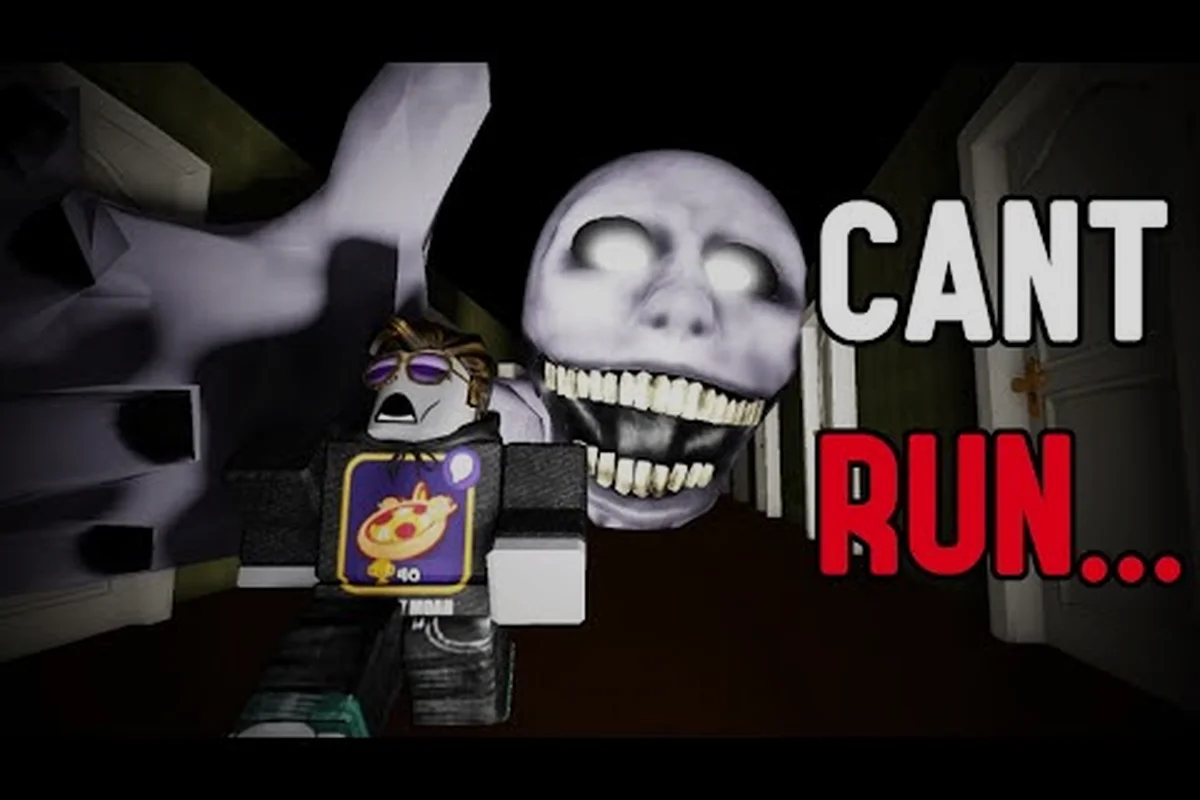
PETAPETA runs inside Roblox, so the PC version is less about a separate download and more about how you configure the client, keyboard, and graphics pipeline. Getting PETAPETA PC controls and settings right changes how the game feels, because the horror loops reward fast camera turns and precise movement. This guide covers keybinds, max graphics tuning, low-end fixes, and the real differences between desktop and phone play.
Why PETAPETA PC Is the Strongest Way to Play
The PC build of PETAPETA is the same Roblox experience as everywhere else, but the input and rendering layer is completely different. On desktop you get a full keyboard, mouse look, and access to the Roblox client's graphics menu, which together remove the two biggest friction points phone players complain about: thumb-camera drift and frame drops during chase sequences.
Community footage from creators like Sai3lplays' PETAPETA PvP vampire class run shows how much camera control matters in tense moments, and that level of precision is simply easier with a mouse. The table below summarizes what actually changes between platforms.
| Feature | PETAPETA PC | PETAPETA phone |
|---|---|---|
| Camera control | Mouse look, adjustable sensitivity | Touch drag, thumb occlusion |
| Movement | WASD + sprint key | Virtual joystick |
| Graphics ceiling | Full Roblox quality slider (up to 10) | Capped by device thermals |
| Frame stability | Stable at 60 FPS on mid hardware | Drops under heat/throttling |
| Keybinds | Fully remappable | Fixed on-screen layout |
| Best for | Chase-heavy levels, PvP | Quick casual sessions |
The short version: PETAPETA PC vs mobile is not a content difference, it is a control and performance difference. Everything you unlock, every level from 1 to 9, is identical. What changes is how reliably you can react when something is behind you.
Does PETAPETA PC Have Different Content?
No. The game page and universe are shared, so progress, badges, and event tasks carry across devices as long as you sign into the same Roblox account. A full walkthrough such as Deilho's Levels 1 to 9 run applies equally to desktop and phone players, which is why most veterans treat PC as a comfort upgrade rather than a separate version.
That said, some event content is noticeably easier on desktop. Timed badge tasks that require interacting with several objects in sequence benefit from keyboard hotkeys and a wider field of view, and the difference shows up most in the harder difficulty tiers.
Setting Up PETAPETA PC Controls Properly
Default Roblox binds work, but they are not tuned for a horror game where you sprint, turn, and interact under pressure. Spending five minutes on PETAPETA PC controls pays off for the rest of your playtime. Open the Roblox settings menu, go to the keyboard tab, and rebuild the layout around your hands rather than the default.
The recommended starting point: rebuild your PETAPETA PC controls around a WASD core before you touch anything else, since every other bind depends on where your left hand rests. Keep Sprint on Left Shift and Interact on E so movement and pickups never leave the same finger cluster, then move Inventory or emote off the number row — reaching for 1–9 mid-chase is the most common cause of a dropped item or a wasted second. If your mouse has side buttons, map Camera reset there so your right hand never leaves the sensor, and set mouse sensitivity between 0.6 and 0.9; the tighter range keeps your view stable in narrow corridors where the camera clips walls. Test the full layout in a low-stakes roam first, because a bind that feels fine standing still can betray you the moment a chase starts.
-
Sprint on Left Shift so your pinky handles speed while your other fingers stay on movement.
-
Interact on E, kept close to WASD for quick pickups during chases.
-
Camera reset on a mouse side button if you have one, so you can snap your view back without leaving the mouse.
-
Inventory or emote moved off the number row to avoid misclicks.
-
Mouse sensitivity between 0.6 and 0.9 for most players, higher only if you play PvP modes.
If you want a deeper breakdown of movement and camera behavior, the PETAPETA controls guide covers character handling in more detail, including how the camera behaves in tight corridors. That page is worth reading before you finalize your bindings, because the camera-clipping behavior in narrow hallways is exactly what the 0.6–0.9 sensitivity range is compensating for — drop below 0.6 and your turn speed can't keep up when a chase forces a sharp corner, while pushing past 0.9 makes the view lurch every time the camera snaps off a wall. The guide also walks through how Sprint and Interact interact with the camera reset button, so you can confirm your mouse side-button mapping won't fight the default view-snap logic. Treat it as the reference layer under your own layout rather than a replacement for it.
Mouse Sensitivity and Camera Behavior
Camera feel matters more than raw DPI. In PETAPETA, the camera sits close behind the character, so a high sensitivity makes corners feel twitchy and a low one makes you slow to check behind you. Start at 0.7 in-game sensitivity with your mouse DPI around 800, then adjust in increments of 0.05 until a full 180-degree turn takes roughly one comfortable wrist sweep.
Players who come from shooters often overshoot here. The fix is to lower sensitivity until you can track a moving target across the screen without correction, then leave it alone for a few sessions. Changing sensitivity mid-progression is the most common reason people feel inconsistent in later levels.
Gamepad and Hybrid Setups
Roblox supports controllers on PC, and a gamepad is a legitimate option if you prefer analog movement. The tradeoff is that mouse look is generally faster for horror camera checks, so most competitive players stay on keyboard and mouse. A hybrid setup, controller in hand with the mouse nearby for menus, works but adds friction during timed interactions.
Unlocking PETAPETA Max Graphics Without Tanking Performance
PETAPETA max graphics is achievable on most gaming PCs, but the Roblox quality slider is not a single dial you should max blindly. Lighting, shadows, and texture quality each cost different amounts of frame time, and the visual payoff varies by level. The table below shows a practical priority order based on community testing.
| Setting | Visual impact | Performance cost | Recommendation |
|---|---|---|---|
| Render distance | High (see threats earlier) | Moderate | Max it first |
| Lighting quality | Medium | High | Level 7-8, not 10 |
| Shadows | Medium | High | Off in chase-heavy levels |
| Texture quality | Low-medium | Low | Max freely |
| Anti-aliasing | Low | Moderate | 2x or 4x only |
| Post-processing | Low | Moderate | Off if FPS drops |
The pattern is consistent: render distance gives you gameplay information, while shadows and post-processing mostly give you atmosphere. Push distance first, keep textures high because they are cheap, and treat lighting and shadows as the settings you sacrifice when frames dip.
Matching Settings to Each Level Type
Levels built around open sightlines reward maximum render distance, because seeing a threat two rooms away is a real advantage. Levels built around tight corridors and jumpscares gain almost nothing from distance and everything from stable frame pacing, so drop shadows and lighting there. Switching presets between levels takes seconds and is worth the habit.
The PETAPETA settings and audio guide goes further into audio cues, which matter as much as visuals in a game where sound often warns you before anything appears on screen. This is why the audio channel deserves its own preset slot rather than being bundled with graphics: a corridor level run at low graphics settings still needs footsteps, door creaks, and the directional hiss that precedes a jumpscare rendered at full volume, since muting or compressing those cues to save CPU removes the exact warning the level design depends on. On low end PCs, keep the audio sample rate and channel count untouched while cutting shadows, and you preserve the timing information that frame drops would otherwise smear.
When Max Graphics Actually Hurts
There is a real case against maxing everything. Higher lighting quality can add bloom and haze that softens silhouettes, making distant shapes harder to read. Some players deliberately run lighting at 7 because the cleaner image helps them spot movement. If you are grinding difficult tiers, clarity beats beauty.
Making PETAPETA Run on a Low-End PC
A PETAPETA low end PC setup is entirely viable, because Roblox scales down aggressively. The goal is not visual fidelity, it is a locked frame rate. Anything below a stable 30 FPS makes camera control feel sluggish, and in a game where turning quickly is a survival skill, that is the real bottleneck.
Start with this order of operations: quality slider first, then shadows, then render distance, since each step changes how much headroom the next one has. Dropping the slider from the default 10 to 1 or 2 alone can recover 20-30 FPS on integrated graphics, which is why it comes before anything else. Only after that baseline is locked should you touch render distance and the frame rate cap, because tuning those against an uncapped, unoptimized baseline just masks stutter instead of removing it.
-
Set the Roblox quality slider to 1 or 2 and confirm the game still looks readable.
-
Turn shadows off completely, since they are the single biggest cost on integrated graphics.
-
Reduce render distance until distant geometry stops loading in visibly, then nudge it back up one step.
-
Close background browsers and launchers; Roblox is CPU-sensitive and a single heavy tab can cost frames.
-
Cap the frame rate to 30 or 60 rather than leaving it uncapped, which stabilizes pacing.
-
Lower your desktop resolution to 1600x900 if you are on a laptop with a weak GPU.
On older integrated graphics, expect to run at the lowest preset with a small render distance and still hold a playable frame rate. That is fine. The game reads clearly even at low settings because the art style relies on silhouettes rather than fine detail.
Laptop-Specific Fixes
Laptops throttle. If your frames drop after ten minutes, the problem is thermal, not settings. Elevate the chassis, clean the vents, and set the Windows power plan to High Performance. Plugging in the charger matters more than most players expect, since many laptops cut GPU clocks on battery.
Diagnosing Stutter Versus Low FPS
Constant low FPS means your settings are too high. Periodic stutter with otherwise smooth frames usually means asset streaming or a background process. Watch whether stutter happens when entering a new area; if it does, raise render distance slightly so assets load earlier rather than mid-chase.
PETAPETA PC vs Phone: Which Should You Actually Use?
The honest answer to PETAPETA PC vs phone depends on what you are doing. Desktop wins on precision, stability, and screen real estate. Phone wins on convenience and nothing else, but convenience is a legitimate reason to play. The comparison below breaks it down by activity.
| Activity | Better platform | Why |
|---|---|---|
| Chase and escape levels | PC | Mouse camera, stable FPS |
| PvP modes | PC | Faster turns, remappable keys |
| Timed event badges | PC | Hotkeys and wider view |
| Casual short sessions | Phone | Instant access, no setup |
| Playing on commute | Phone | Portability |
| Recording or streaming | PC | Clean capture, higher resolution |
If you split time between devices, the PETAPETA mobile guide covers touch layouts and the settings that keep phones from overheating during long sessions. Treat the phone as a companion rather than a replacement: use it for the casual short sessions and commute play from the table above, where instant access beats precision, then switch to PC for chase and escape levels, PvP turns, and timed event badges that lean on mouse camera control and remappable keys. The mobile guide's touch layout notes matter most here, since on-screen buttons eat screen space that the wider desktop view preserves during fast camera swings.
Cross-Progress and Account Sync
Because PETAPETA is a single Roblox experience, your progress follows your account, not your device. Log in on PC and your unlocked levels and badges are there. The only thing that does not transfer is your keybind layout, which is stored per device, so expect to rebuild it once on each machine you use.
Multiplayer Considerations
Server population affects performance on both platforms. Busy servers with many players in one area cost more frames, and that cost hits low-end PCs and phones hardest. The PETAPETA multiplayer and servers guide explains how server choice and private options affect stability, which is worth reading if you regularly play with a full lobby.
Practical Tuning Workflow for New PC Players
Rather than guessing, run the same short routine every time you install PETAPETA on a new machine. It takes about ten minutes and removes most of the frustration people blame on the game itself. The order matters more than the settings: establish a baseline FPS on an empty or low-population server first, since spawn crowds and particle-heavy effects skew early readings and tempt you to over-correct. Treat the quality slider as your primary lever and render distance and texture quality as secondary trims — on low-end PCs, pushing render distance to maximum before locking a preset is the single most common cause of the stutter players mistake for a PETAPETA PC performance problem. Rebind sprint, interact, and camera reset before your first real level, too; controls you fight against feel like lag even when frame times are stable.
-
Launch the game, join an empty or low-population server, and note your baseline FPS with the default preset.
-
Drop the quality slider to 1, then raise it one step at a time until frames fall below your target.
-
Lock in that preset, then max render distance and texture quality within it.
-
Rebind sprint, interact, and camera reset, then test each in an open area.
-
Set mouse sensitivity and confirm a 180-degree turn feels natural.
-
Play one full level and watch for stutter before touching anything else.
This sequence front-loads the settings that matter and avoids the common trap of maxing visuals first, then fighting frame drops for the rest of the session. Players who follow it usually land on a preset two or three steps below maximum and never notice the difference during actual gameplay.
Reading Your Own Performance Data
Roblox exposes an FPS counter through the in-game performance stats, and it is worth leaving on for your first few sessions. Watch the number during camera turns specifically, not just while standing still, because rotation is where frame drops become a control problem. If FPS holds steady while idle but dips when you spin, lighting and shadows are your culprits. If it dips when moving through the map, render distance and asset streaming are the issue.
Common Mistakes That Cost Frames
Three habits account for most avoidable performance complaints. Leaving the quality slider on automatic lets Roblox pick a preset based on hardware guesses rather than your actual target frame rate. Running a browser with many tabs open steals CPU time that Roblox needs. And ignoring laptop thermals turns a perfectly capable machine into a throttled one within minutes. Fixing these costs nothing and often recovers more frames than dropping settings.
Frequently Asked Questions
Is PETAPETA on PC a separate download from the Roblox version?
No. PETAPETA runs inside the Roblox client, so installing Roblox on Windows or Mac gives you the same game with the same account progress. There is no standalone PC build, and any site offering a separate PETAPETA installer should be treated as unsafe.
What are the best PETAPETA PC controls for chase levels?
Put sprint on Left Shift and interact on E so both stay under your left hand while your right hand controls the camera. Keep mouse sensitivity around 0.7 and bind camera reset to a mouse side button. This layout lets you turn and interact without lifting your fingers off movement keys.
Can a low-end PC run PETAPETA smoothly?
Yes, with the quality slider at 1 or 2, shadows off, and a reduced render distance. Integrated graphics can usually hold a playable frame rate at low settings. Cap the frame rate at 30 or 60 for stable pacing, and keep the laptop plugged in to avoid GPU clock reductions.
Does PETAPETA max graphics give a competitive advantage?
Only partly. Render distance genuinely helps because you spot threats earlier, but lighting and shadows mostly add atmosphere and can even soften silhouettes. Most experienced players max distance and textures, then run lighting around 7 and shadows off for a cleaner, faster image.
Can I use a controller for PETAPETA on PC?
Roblox supports controllers on PC, and analog movement feels natural. However, mouse look remains faster for the quick camera checks that horror levels demand, so most players stick with keyboard and mouse. A controller works fine for casual play but is a slight disadvantage in PvP.
Tuning PETAPETA for desktop comes down to three things: a control layout built around quick camera turns, a graphics preset that prioritizes render distance over atmosphere, and a low-end fallback that keeps frame pacing stable. Get those right and the PC version becomes the cleanest way to play, whether you are grinding difficult tiers or just want the camera to do what you tell it.