
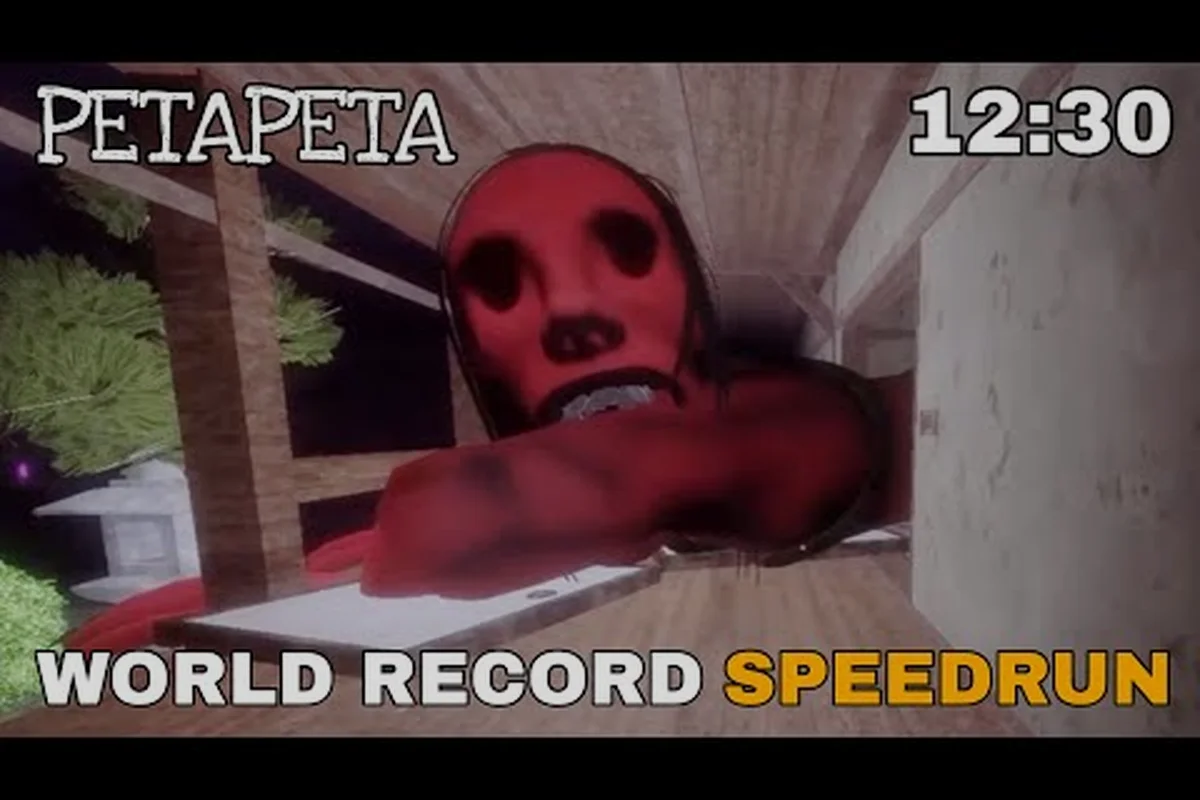
PETAPETA performance depends on far more than raw hardware, because the horror experience runs on Roblox and inherits the engine's quirks alongside its flexibility. If your frame rate collapses the moment a chase begins, the cause is usually a specific setting or a device limitation you can fix in minutes. This guide breaks down what actually drives FPS drops, which devices hold up, and how to apply a PETAPETA lag fix that sticks.
What Actually Drives PETAPETA FPS on Roblox
Roblox renders every PETAPETA scene through its own engine, so your frame rate is a product of three layers: the device you play on, the graphics quality preset you select, and the network conditions during a session. Understanding that stack explains why two players on identical laptops can report wildly different results.
The heaviest load in PETAPETA comes from dynamic lighting and shadow casting. Community reports consistently point to chase sequences as the frame-rate killer, because the game spawns multiple moving light sources and particle effects at once while the camera swings quickly. When shadows are set to high, each light recalculates in real time, and mid-range hardware drops frames exactly when you need responsiveness most.
| Performance Layer | What It Controls | Typical FPS Impact |
|---|---|---|
| Device hardware | CPU, GPU, RAM ceiling | Baseline cap, 20-40 FPS swing |
| Roblox graphics preset | Shadows, textures, render distance | 10-30 FPS swing |
| Network latency | Input registration, entity sync | Perceived stutter, not true FPS |
| Background apps | RAM and CPU contention | 5-15 FPS swing |
| Display refresh rate | Frame pacing ceiling | Caps maximum smoothness |
A useful mental model: hardware sets your ceiling, settings decide how close you get to it, and network quality decides whether the frames you do render feel responsive. Players often blame PETAPETA FPS problems on the game itself when a browser tab with hardware acceleration enabled is quietly eating 15% of their GPU. Closing background processes is the cheapest test you can run before touching any in-game slider.
Roblox also caps frame rate by default in many configurations, so a locked 60 FPS reading does not mean your machine is struggling. If you see a flat number that never moves, you are looking at a frame cap rather than a bottleneck, and the fix lives in your client settings rather than in PETAPETA itself.
PETAPETA Lag Fix: Settings That Matter Most
The fastest PETAPETA lag fix is a deliberate graphics downgrade rather than a blanket "low everything" approach. Some settings cost almost nothing visually but save enormous frame time, while others are barely worth touching. Prioritize the expensive ones first. In practice, shadow resolution and volumetric lighting are the two biggest frame-time drains on PETAPETA's dense particle scenes—dropping shadows from Ultra to High typically recovers 15–20 FPS on mid-range GPUs with almost no visible difference, whereas lowering texture quality from High to Medium saves only 2–3 FPS while making the PETAPETA character sprites noticeably blurry. Anti-aliasing sits in the middle: switching from MSAA 4x to FXAA cuts roughly 8–10 FPS of overhead and is worth doing only if you're already below 60 FPS after the shadow and volumetric passes.
Shadow and lighting adjustments
Drop shadow quality to the lowest available tier before anything else. Shadows in Roblox are recalculated per light per frame, which is why chase scenes stutter. Lowering shadow resolution typically recovers 15 to 25 FPS on integrated graphics, according to community testing, and the visual difference in a dark horror environment is minimal because most of the scene is intentionally underlit.
Render distance and texture quality
Texture quality matters far less than most players assume, since PETAPETA uses relatively compact assets. Render distance, however, forces the engine to load and draw geometry far beyond what you can see in a corridor-based horror map. Pulling render distance inward reduces pop-in risk while freeing frame time during transitions between rooms.
-
Shadow quality: set to lowest, biggest single gain
-
Global lighting: medium is usually indistinguishable from high indoors
-
Texture quality: keep at medium, low offers little benefit
-
Render distance: reduce one or two notches for corridor maps
-
Anti-aliasing: disable on laptops, keep on desktops with headroom
-
Particle effects: reduce if chase sequences still hitch
If you are still learning the map layouts and want to know which rooms stress the engine hardest, the full walkthrough maps out the sequence so you can anticipate heavy scenes before they hit. Corridor transitions are the usual culprit: each doorway forces the engine to stream in the next room's geometry while the previous one is still resident, so a single notch of render distance can mean the difference between a clean cut and a visible hitch. Pairing that walkthrough knowledge with the settings list above lets you pre-emptively drop render distance before a known heavy room rather than reacting after the stutter.
Which Devices Run PETAPETA Smoothly
PETAPETA supported devices span phones, tablets, laptops, and desktops, and the practical experience varies enormously across that range. Because the game runs on Roblox, any device with a working Roblox client can technically launch it, but "launch" and "playable" are different standards.
| Device Tier | Example Hardware | Expected FPS | Verdict |
|---|---|---|---|
| Entry mobile | 3-4 GB RAM Android, older iPhone | 20-30 FPS, dips in chases | Playable with low settings |
| Mid mobile | 6 GB RAM Android, iPhone 12+ | 30-45 FPS | Comfortable at low-medium |
| Budget laptop | Integrated GPU, 8 GB RAM | 30-50 FPS | Needs aggressive settings |
| Gaming laptop | Dedicated GPU, 16 GB RAM | 60+ FPS | Smooth at medium-high |
| Desktop | Modern discrete GPU | 60-144 FPS | No meaningful limits |
Mobile players should expect the biggest compromises. Touch controls plus a demanding chase scene means frame drops hurt more, because input latency compounds with rendering delay. Lowering resolution scale on phones is often more effective than any other single change, since mobile GPUs are fill-rate limited.
On laptops, the single most overlooked fix is power management. Running on battery forces the GPU into a low-power state, and players routinely report a 20 FPS difference simply by plugging in. Setting Windows to High Performance and confirming the Roblox client uses the dedicated GPU rather than integrated graphics resolves a large share of "why is my PETAPETA FPS so bad" complaints.
Desktop players with strong hardware should check whether their monitor refresh rate is actually applied, because the "Desktop | Modern discrete GPU | 60-144 FPS" row in the device tier table only holds if the panel is genuinely running at its rated speed. A 144 Hz monitor left at 60 Hz in Windows display settings caps perceived smoothness at 60 FPS regardless of how many frames the engine renders, so the extra headroom your discrete GPU produces is silently thrown away. Confirm the refresh rate under Settings > System > Display > Advanced display, then verify the Roblox client isn't overriding it with an in-game frame cap or V-Sync toggle — both can pin the render loop below the panel's ceiling and reintroduce the stutter you were trying to eliminate.
PETAPETA Console and Cross Platform Reality
Questions about a PETAPETA console release come up constantly, and the honest answer is that the game's availability follows Roblox's platform footprint rather than a standalone port. Roblox supports Xbox, and PETAPETA cross platform play works wherever the Roblox client runs, so console players can join the same sessions as PC and mobile users.
| Platform | Roblox Client Available | PETAPETA Playable | Notes |
|---|---|---|---|
| Windows PC | Yes | Yes | Best performance ceiling |
| macOS | Yes | Yes | Solid on Apple Silicon |
| Android | Yes | Yes | Settings matter most here |
| iOS | Yes | Yes | Smooth on recent models |
| Xbox | Yes | Yes | Controller support, capped FPS |
| PlayStation | Limited | Varies | Check current Roblox support |
Cross platform sessions introduce one performance wrinkle worth knowing: the game's entity synchronization is server-authoritative, so a player on a slow connection can appear to teleport or stutter to everyone else even when their own screen looks fine. If teammates report you rubber-banding, the issue is upload stability rather than your frame rate.
Xbox players should note that Roblox on console enforces its own graphics configuration, which means you cannot fine-tune shadows the way PC users can. The tradeoff is consistency — console sessions rarely suffer the wild swings that a struggling laptop shows. If you want to understand how the game's underlying systems behave across these platforms, the game mechanics breakdown explains the server-side logic that drives synchronization.
Diagnosing Stutter Versus Low FPS
Not every hitch is a frame-rate problem, and misdiagnosing the cause wastes hours. True low FPS means the image updates slowly and consistently. Stutter means the image freezes briefly and then catches up. Network lag means your inputs register late while the visuals look smooth.
-
Consistent low frame rate: hardware or graphics settings issue
-
Periodic freezes every few seconds: memory pressure or background app
-
Smooth visuals, delayed inputs: network latency, not FPS
-
Sudden drop only in chases: particle and lighting load
-
Drop after 20+ minutes: thermal throttling on laptops and phones
Thermal throttling deserves special attention on mobile. A phone that runs PETAPETA at 45 FPS for ten minutes and then settles at 25 FPS is not broken — it is shedding heat. Removing the case and avoiding charging while playing measurably improves sustained performance, based on community reports from mobile players.
For stutter tied to memory, check your available RAM before launching. Roblox plus a browser plus a chat app can consume 6 GB on its own, leaving little headroom for the game's asset streaming. Closing tabs is unglamorous but effective, and it costs nothing to test.
Building a Stable Settings Profile
Once you know your device's ceiling, lock in a profile and stop fiddling. Constantly changing settings mid-session prevents you from judging whether a change helped, and it makes thermal behavior harder to read. Treat the first full session after a change as a controlled test: play the same chase-heavy route you used to benchmark your starting FPS, and only compare results against that baseline rather than against a vague memory of how smooth the last round felt. If you tweak shadow quality, particle effects, and resolution scale all in one sitting, you cannot tell which one bought you the extra frames — or which one pushed your device into thermal throttling twenty minutes in. Change one variable at a time, restart the client so the cached configuration clears, and log the result before moving to the next setting.
| Goal | Priority Setting | Target Value |
|---|---|---|
| Maximum FPS | Shadow quality | Lowest |
| Visual balance | Global lighting | Medium |
| Mobile battery life | Resolution scale | 70-80% |
| Competitive responsiveness | Frame cap | Match refresh rate |
| Stability over time | Background apps | Closed |
Start with shadows at minimum and everything else at medium, then play one full session. If chases still hitch, drop particle effects next. If the game looks too flat, raise lighting before touching shadows, since lighting is cheaper than shadow casting. This order of operations recovers the most frames per unit of visual loss.
Players who find themselves dying repeatedly during stutters should separate the two problems: fix performance first, then work on technique. The survival tips guide covers positioning and escape routes that reduce how often you end up in the most demanding chase scenes, which indirectly improves your average frame rate by keeping you out of the heaviest moments.
Finally, verify your changes actually applied. Roblox sometimes retains a cached configuration, and a client restart after adjusting settings ensures the new values take effect. If a setting seems to have no impact, restart before concluding it does not work.
Frequently Asked Questions
Why does PETAPETA drop frames only during chase scenes?
Chase sequences spawn multiple dynamic lights and particle effects simultaneously while the camera moves fast, forcing the engine to recalculate shadows every frame. Lowering shadow quality to the minimum tier is the single most effective fix, typically recovering 15 to 25 FPS on integrated graphics according to community testing.
Is PETAPETA available on console?
It runs anywhere the Roblox client is supported, which includes Xbox. There is no separate standalone console port, so console players join the same cross platform sessions as PC and mobile users. Console graphics settings are managed by Roblox rather than adjustable in-game, which keeps performance consistent but limits fine-tuning.
How much RAM do I need for smooth PETAPETA performance?
8 GB is a practical floor on PC, and 6 GB is workable on mobile. The game itself is not memory-hungry, but Roblox plus browser tabs and chat apps can consume 6 GB together, leaving too little headroom for asset streaming. Closing background apps often resolves periodic stutter entirely.
Does plugging in a laptop really improve FPS?
Yes, and the difference is larger than most players expect. Running on battery forces the GPU into a low-power state, and players commonly report around a 20 FPS gap between battery and plugged-in sessions. Setting Windows to High Performance and confirming the dedicated GPU is active compounds the gain.
Can I raise FPS on a phone without making the game ugly?
Lower the resolution scale to roughly 70 to 80 percent before touching anything else. Mobile GPUs are fill-rate limited, so resolution has an outsized effect on frame rate while texture detail barely matters on a small screen. Removing your case and avoiding charging while playing also reduces thermal throttling over long sessions.
PETAPETA performance is a solvable puzzle rather than a fixed limitation, and the levers are predictable: shadows first, resolution scale on mobile, power management on laptops, and background apps everywhere. Match your settings to your device tier, lock in a profile, and the chase scenes stop being a slideshow. Cross platform play means the same advice applies whether you are on a phone, a console, or a desktop, and a stable frame rate is the difference between escaping and getting caught.