
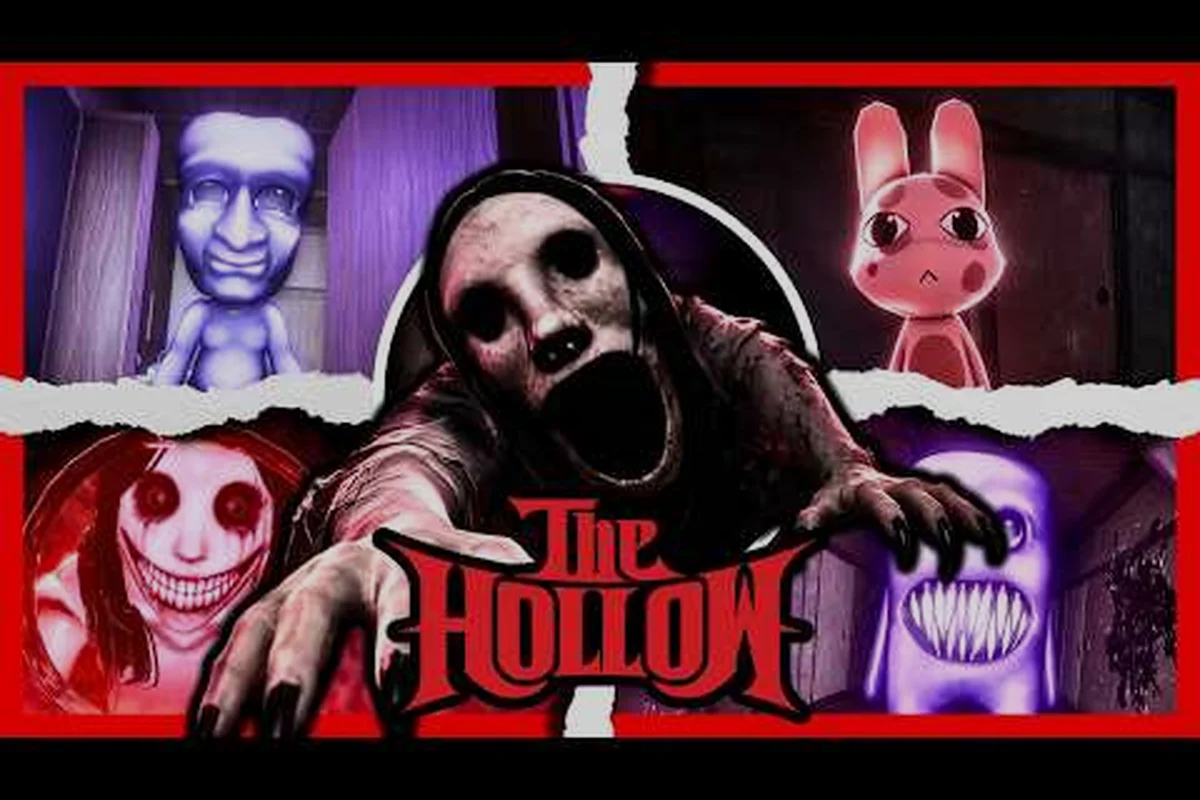
PETAPETA settings decide whether you see a threat coming or hear it too late, and the split between the two is sharper than most players expect. On the graphics side, the options that genuinely affect your reaction time are draw distance and shadow quality — both determine how early an enemy silhouette resolves against the fog — while texture and post-processing sliders mostly eat frames without buying you information. The audio side is where PETAPETA hides its real advantage: footstep and directional cue channels carry enemy position data that no visual setting can replicate, which is why a decent pair of headphones changes how you play rather than just how the game sounds. This guide covers both halves of that equation and the trade-offs between them.
Why PETAPETA Settings Matter More Than You Think
Most players install the game, accept whatever the launcher picks, and never touch the menu again. That works fine for a walking simulator, but PETAPETA leans on atmosphere and audio cues in ways that punish a sloppy setup. A frame drop during a chase or a muffled footstep behind you is not a cosmetic problem — it is a lost run.
The good news is that the menu is not complicated. There are roughly a dozen options worth touching, and most of them take under a minute to adjust. What follows is a practical walkthrough of the PETAPETA graphics settings, the audio panel, and the headphone habits that experienced players swear by.
Community reports consistently point to the same pattern: players who spend five minutes in the options menu report fewer "unfair" deaths than those who never open it. The mechanism is straightforward once you break it down — a stable frame rate keeps the chase AI's pathing readable, so you react to the lunge instead of the stutter, while a correctly set output device preserves the stereo panning that tells you which doorway the footstep came from. Flip it around and the cost of skipping the menu becomes concrete: a single dropped frame at the wrong moment reads as a phantom hitbox, and a muffled cue through the wrong audio channel turns a survivable encounter into a lost run. That asymmetry — five minutes of PETAPETA settings versus hours of replaying a section you never actually misplayed — is what makes this the highest-value five minutes in the game.
PETAPETA Graphics Settings Explained
The graphics tab splits into three groups: display, quality, and effects. Display handles resolution and window mode, quality covers shadows and texture filtering, and effects control post-processing like motion blur and film grain. You do not need to max everything — in fact, maxing everything is usually the wrong call.
Start with display. Set your resolution to your monitor's native value and choose Fullscreen over borderless if you notice input lag. Borderless windowed is more convenient for alt-tabbing, but it can add a frame or two of delay, which matters during timed sequences.
Then move to quality. The table below shows how each option affects performance and readability, based on community testing across mid-range and high-end hardware. Note that the cost column is relative, not absolute: shadow quality is the single biggest frame-time drain in the quality group, while texture filtering and anti-aliasing cost very little yet sharpen edge clarity and distant detail. That asymmetry is why the recommendation column rarely says "max everything" — a GTX 1660-class card gains far more from dropping shadows to Medium than from disabling TAA, which would leave you with shimmering edges during fast camera pans. Read the table left to right and treat the performance column as your budget and the visual impact column as what you actually get for spending it.
| Setting | Performance cost | Visual impact | Recommendation |
|---|---|---|---|
| Shadow quality | High | Medium | Medium |
| Texture filtering | Low | Low | High |
| Anti-aliasing | Medium | Medium | High (TAA) |
| Motion blur | Low | Negative | Off |
| Film grain | Low | Negative | Off |
| Vignette | Low | Neutral | Personal taste |
| Render scale | Very high | High | 100% |
The pattern here is simple: shadows are the expensive one, and they are also the least useful for spotting threats. Dropping shadow quality from Ultra to Medium typically recovers a meaningful chunk of frame time on older GPUs, and you will barely notice the difference in a dark corridor.
Texture filtering and anti-aliasing, by contrast, are cheap and improve clarity. Keep them high. If you are running a laptop or an older card, this is where the PETAPETA best settings conversation usually lands: high filtering, medium shadows, everything else default.
Motion Blur and Film Grain: Turn Them Off
These two options are the most common source of complaints in the PETAPETA graphics guide discussions. Motion blur smears the image during camera movement, which makes it harder to track objects at the edge of the screen. Film grain adds a layer of noise that can mask small visual details.
Neither is a performance problem — both are cheap to render. The issue is readability. If you are trying to spot a subtle change in the environment, grain and blur actively work against you. Turn both off unless you specifically want the cinematic look for a replay.
Render Scale and Resolution
Render scale is the single most powerful performance lever in the menu. At 100% you get native rendering; dropping to 85% or 75% can rescue frame rate on weaker hardware at the cost of some softness. Community testing suggests most players cannot tell 90% from 100% on a 1080p display, so it is a safe first experiment if you are struggling.
Do not drop below 70%. Past that point, text and fine details become genuinely hard to read, and the visual penalty outweighs the smoothness gain. The reason is that below roughly 70% the internal render buffer no longer has enough pixels to resolve small UI glyphs and thin geometry edges, so the upscaler has to invent detail that was never rendered — producing the shimmer and smearing you notice most on HUD text and distant signage. If a 75% pass still leaves you short of your frame target, treat 70% as the hard floor and reclaim performance elsewhere first: drop shadow quality or ambient occlusion a notch, since those cost far less visual clarity per frame than an aggressive render-scale cut.
PETAPETA Audio Settings and Sound Cues
The audio tab is where PETAPETA quietly does its best work. The game uses positional sound to telegraph events before they appear on screen — a creak, a distant thud, a shift in ambient tone. If your PETAPETA sound settings are wrong, you lose that entire information channel.
Open the audio panel and check three things first: master volume, music volume, and effects volume. Many players leave music at 100% and then wonder why they cannot hear footsteps. Pull music down to around 40-50% and keep effects at full. The mix is designed so that music sits behind the sound design, not on top of it.
| Audio slider | Suggested value | Why |
|---|---|---|
| Master volume | 80-90% | Headroom for loud cues |
| Music | 40-50% | Keeps ambience audible |
| Sound effects | 100% | Preserves positional cues |
| Voice / dialogue | 90% | Clarity without clipping |
| Ambient | 70-80% | Atmosphere without masking |
If the game offers an output mode selector, choose Headphones rather than Speakers. This switches the mix to a binaural profile that widens the stereo field and makes left-right positioning much more precise. It is the single most impactful change in the entire PETAPETA audio settings panel.
Why Positional Audio Changes Fights
In a game built around tension, knowing which direction a sound came from is often more valuable than seeing it. A cue that arrives from behind your left shoulder tells you to move right — but only if your audio setup preserves that direction.
Stereo speakers sitting on a desk collapse that information. The left and right channels bleed into each other, and the brain struggles to place the source. Headphones solve this because each ear receives an isolated channel. According to community reports, players who switch from speakers to headphones frequently describe the game as "suddenly fairer," which is a strong signal that the audio design is doing real work.
Choosing PETAPETA Headphones for Cue Clarity
You do not need audiophile gear. What you need is a pair with decent stereo separation, low distortion at moderate volume, and a fit that stays comfortable for a full session. Closed-back designs are generally better here because they block room noise that would otherwise mask quiet cues.
| Headphone type | Cue clarity | Comfort (long sessions) | Notes |
|---|---|---|---|
| Closed-back wired | Excellent | Good | Best all-round pick |
| Open-back wired | Excellent | Very good | Leaks sound, needs quiet room |
| Wireless (2.4 GHz) | Very good | Good | Check for latency |
| Wireless (Bluetooth) | Fair | Good | Latency can smear cues |
| Budget earbuds | Fair | Varies | Acceptable but narrow stage |
Bluetooth is the one to be careful with. Codec latency can delay audio by 100-200 ms, which is enough to make a cue arrive after the event it warns about. If you must go wireless, use a 2.4 GHz dongle rather than standard Bluetooth.
Clean audio only pays off once you know what each cue is telling you. In PETAPETA, the audio layer reinforces the visual timing windows — the chime that marks a safe interaction window, the low thrum before a hazard cycle resets — so a headphone that resolves those layers cleanly lets you react to sound a beat before the on-screen prompt. For players working through the game's trickier sequences, that pairing matters most: the game mechanics breakdown covers how timing and interaction rules fit together, so you can map each cue to the exact system it signals rather than guessing.
Volume, Not Loudness
A common mistake is cranking volume to hear quiet details. That flattens your dynamic range and makes loud cues painful. Instead, set master volume so that the loudest moments are comfortably loud but not startling, then let the mix do the rest. If you still cannot hear a specific cue, the problem is usually the music slider, not the master.
A Step-by-Step PETAPETA Settings Checklist
Here is the order experienced players recommend. It takes about five minutes and covers everything that matters, but the sequence matters as much as the values: set resolution and Fullscreen first, because switching display mode can reset render scale and shadow quality on some drivers, then lock render scale at 100% before touching shadows or anti-aliasing. Handle the audio pass last so the Headphones output mode and 40-50% music level are tuned against the final visual load, not a half-configured build.
-
Set resolution to native and switch to Fullscreen.
-
Confirm render scale is at 100% (drop to 90% only if frame rate struggles).
-
Set shadow quality to Medium.
-
Keep texture filtering and anti-aliasing High.
-
Turn motion blur and film grain off.
-
In audio, set output mode to Headphones.
-
Lower music to 40-50%, keep effects at 100%.
-
Play ten minutes and adjust master volume to taste.
Run this checklist once, then leave it alone. Settings drift is real — a driver update or a new monitor can silently reset your display options, so it is worth re-checking after any hardware change. The most common culprits are render scale snapping back to a dynamic value and Fullscreen reverting to borderless windowed, which quietly costs a few frames and softens the image; shadow quality is the next to slip, often resetting to High after a GPU driver install. Re-verify steps 1-3 first, since a changed render scale or display mode can cascade into the shadow and anti-aliasing values below it.
If you are chasing specific outcomes rather than general comfort, the endings guide explains how different routes branch, and having reliable audio makes those branches easier to read. This is where the Headphones output mode earns its place in the checklist: dialogue cues and ambient stingers that hint at a route split sit in the stereo field, and they can get buried under the effects channel if you leave output on speakers. Keeping effects at 100% while music sits at 40-50% preserves those cues without the soundtrack masking them, so a branch point reads as clearly in your ears as it does on screen.
Troubleshooting Common PETAPETA Settings Problems
Even a clean setup can misbehave, and the pattern behind most PETAPETA settings complaints is a mismatch between what the game requests and what the OS or GPU driver actually delivers. Players most often hit stuttering tied to render scale and shadow quality, missing positional audio when output mode isn't set to Headphones, sample-rate dropouts from a 44.1 kHz vs 48 kHz conflict, fullscreen input lag from overlays or V-Sync, and a soft image when render scale slips below 100%. The fixes below map each symptom to its usual cause.
-
Stuttering after a few minutes — usually a render scale or shadow issue; drop shadows one tier and retest.
-
No positional audio — check that output mode is set to Headphones and that Windows spatial audio is not overriding the game's mix.
-
Audio cutting out — often a sample rate mismatch; set both the game and the OS to 48 kHz.
-
Input lag in fullscreen — disable any overlay software and confirm V-Sync is off if you have a high refresh display.
-
Blurry image at native resolution — verify render scale is 100% and that resolution matches your monitor exactly.
Most of these resolve in under a minute, but the sample rate mismatch is the sneakiest one because the game gives no error — audio simply drops for a fraction of a second at irregular intervals. The cause is Windows resampling the game's 48 kHz output to a 44.1 kHz endpoint (or vice versa), which introduces buffer underruns that surface as clipped footsteps and dropped positional cues. Open Sound Settings, set the default playback device's format to 48 kHz, then mirror that value under PETAPETA's audio settings so both ends match and the resampler is bypassed entirely.
When to Restore Default Settings
If you have changed many options and lost track, resetting to default and reapplying the checklist above is faster than debugging individual sliders. Defaults are a reasonable baseline; they are just not optimized for readability or audio clarity. A practical example: if you have nudged the master volume, music, and effects sliders across several sessions, a single reset wipes all three at once, then you reapply the checklist in order — master volume first, then music, then effects — so each value is set against a clean baseline instead of a stack of half-remembered tweaks. This matters most for PETAPETA audio settings, where one slider left too high masks the cues the others are tuned to expose.
How Settings Interact With Difficulty and Progression
It is tempting to treat the options menu as separate from gameplay, but the two connect. Cleaner visuals make environmental puzzles easier to parse, which is why the puzzle guide assumes you can actually see the details it describes. Muffled audio, meanwhile, hides the timing cues that several sequences depend on.
There is also a difficulty angle. Higher difficulty settings tend to tighten timing windows, which makes frame consistency more valuable. If you are playing on a harder mode, prioritize stable frame rate over visual fidelity — a consistent 60 fps beats a fluctuating 90.
| Playstyle | Priority | Suggested tweak |
|---|---|---|
| First playthrough | Visual clarity | High filtering, medium shadows |
| Hard mode | Frame consistency | 90% render scale, low shadows |
| Story focus | Atmosphere | Keep vignette, off motion blur |
| Repeated runs | Speed and cues | Headphones, effects at 100% |
None of these are permanent commitments, and that flexibility is deliberate — PETAPETA lets you re-enter the options menu mid-run, so a tweak that felt wrong during a boss attempt can be reverted before the next checkpoint rather than locked in for the whole playthrough. Switching itself costs only seconds, which means the smarter approach is to treat the table above as a starting template and adjust per section: drop to 90% render scale before a timing-heavy sequence, then restore high filtering once you are back to environmental puzzle parsing. Rebinding audio to headphones and re-enabling vignette between runs takes the same few seconds, so there is no penalty for experimenting.
Final Thoughts on PETAPETA Settings and Audio
The short version: native resolution, medium shadows, motion blur and film grain off, headphones selected as the output mode, music pulled back to roughly half, and effects left at full. That combination gives you a stable image and a soundscape you can actually navigate by.
Everything beyond that is preference. Some players love the grain; some prefer borderless windowed for convenience. The point is to make those choices deliberately rather than accepting whatever the launcher picked. Five minutes in the menu is the cheapest performance and clarity upgrade available in PETAPETA, and it costs nothing but attention.
Frequently Asked Questions
What are the best PETAPETA graphics settings for low-end PCs?
Set render scale to 90%, shadow quality to Low, and turn off motion blur and film grain. Keep texture filtering and anti-aliasing at High because they are cheap and improve clarity. This combination usually holds a stable frame rate on older hardware without making the image look muddy.
Do I need headphones to play PETAPETA?
You do not strictly need them, but they help considerably. The game uses positional audio to signal events before they appear on screen, and stereo speakers blur that directional information. Any closed-back wired pair will outperform desk speakers for cue clarity.
Why can't I hear footsteps in PETAPETA?
The most common cause is music volume sitting too high in the audio settings. Lower music to around 40-50% and keep sound effects at 100%. Also confirm the output mode is set to Headphones rather than Speakers, since the two use different mixes.
Does motion blur affect performance in PETAPETA?
Barely — it is a cheap effect. The reason to turn it off is readability, not frame rate. Motion blur smears the image during camera movement and makes it harder to track objects at the edge of the screen, which matters during timed sequences and chases.
How do I fix audio cutting out in PETAPETA?
A sample rate mismatch is the usual culprit. Set both the game's audio output and your operating system's playback device to 48 kHz. If the dropouts continue, disable any spatial audio enhancement in Windows, since it can conflict with the game's own positional mix.